Check your PDF before printing
Is my PDF print-ready? A free color and ink checklist
You can check the color and ink side of a PDF for free in your browser with the CMYKflow Ink Checker. It does not check fonts, image resolution or bleed size. Open the PDF and it tells you whether the page contains RGB colors, whether the total ink goes over your printer’s limit, whether text is set in four-color black instead of 100% black, and which spot colors and overprint the page uses. Nothing is uploaded, and you do not need an account or prepress software. Below is a short checklist and what to do about each finding.
Why check a PDF before printing
Design tools such as Canva, Figma or Adobe Express are built for screens. Their PDFs often contain RGB colors, and dark areas converted to CMYK can carry more ink than a press can dry. A printer may convert the file for you, ask you to fix it, or print it as it is. A few minutes of checking tells you which of these is likely before the job goes to press.
Check your PDF now. Free, in your browser, nothing uploaded.
Open Ink CheckerThe checklist
-
Open the PDF and choose your printer’s settings
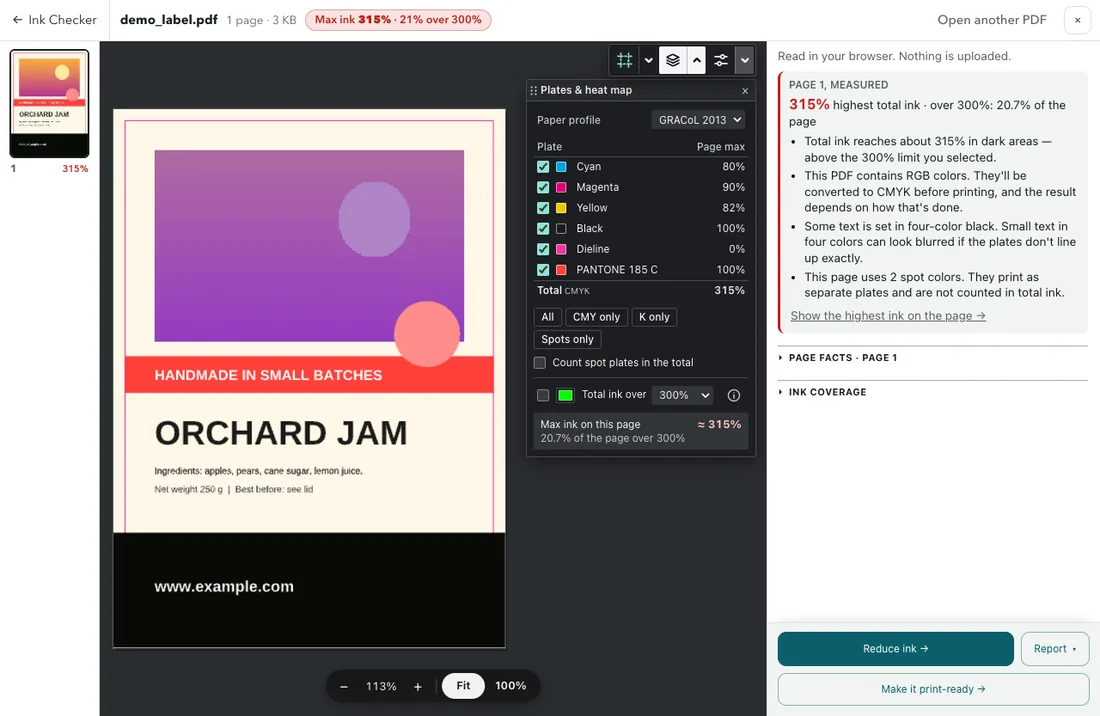
Drop the PDF onto the Ink Checker. In the Plates & heat map panel on the page, choose the paper profile (GRACoL 2013, Fogra 27, Fogra 39 or Fogra 51) and the ink limit your printer gave you. If they gave you none, 300% is a common limit for coated paper.
-
Is the PDF CMYK? Look for RGB
If the page contains RGB colors, the box at the top of the right column says “This PDF contains RGB colors”. Open the Display panel from the small tool strip at the top right of the page and tick Highlight RGB content (it appears only when there is RGB on the page) to highlight the RGB content, such as a photo exported in RGB. Check each page; the notes are for the page you are looking at.
-
Is the total ink within the limit?
Max ink, in the top bar, shows the highest total ink on the page: red when it is over your limit, orange when it is close. Click it to jump to the darkest spot, or turn on the heat map to see the areas over the limit (about 1 mm across or larger). Our guide How to check the total ink coverage of a PDF online goes through it in detail.
-
Is black text 100% K?
Small text prints most cleanly in black ink only. If text on the page is set in four-color black, the box at the top of the right column says “Some text is set in four-color black”. Point at a letter: the card next to the cursor says 100% K black or 4-color black. Or click CMY only in the Plates & heat map panel: text that is pure black disappears there.
-
Which spot colors are there?
The Plates & heat map panel lists every spot plate by its name in the PDF, and the box at the top of the right column counts them. Check that the spot colors are the ones your printer expects, and that the die line or varnish is on its own plate. See How to preview the color separations of a PDF online.
-
Overprint, trim and bleed
Page facts in the right column (click its title to unfold it) says whether the page uses overprint, and Simulate overprint, on by default, shows it as a press prints it. In the Guides panel (also opened from the tool strip), Show the file’s own boxes draws the trim and bleed boxes on the page if the PDF defines them; Page facts shows the page size and the trim box.
What the checker does not check
The Ink Checker looks at color and ink. It does not check image resolution, fonts, the size of the bleed or the page layout. Print-Ready checks those too. Readings are close, not exact: each ink is read to within about 2%, and when a page uses features that a browser mixes differently from a press, such as blend modes like Multiply, the box at the top of the right column says that its readings are approximate.
What to do with the results
| Finding | What to do |
|---|---|
| RGB colors or images | Convert the PDF to CMYK with CMYKflow. RGB that carries a color profile is converted from that profile; RGB without one is treated as sRGB. |
| Total ink over the limit | Click Reduce ink. It sends the PDF to CMYKflow with your paper profile and ink limit; Less ink for press lowers the ink in dark areas. |
| Text in four-color black | Set small text to pure black in your design tool, or convert with CMYKflow: Black text in black ink only, on by default, prints text that looks black in 100% black ink (not dark grays, and not always text that was flattened or converted to outlines). |
| Unexpected spot colors | Fix them in your design tool, or ask your printer how they want them. |
| Readings marked approximate | Ask your printer for a proof if the affected area matters. |
After converting, open the new version in the checker again: Preview PDF in Your files on the Less Ink page opens it there, and you can compare it side by side with your original. If your printer asked for a CMYK file or less ink, our guide My printer asked for a CMYK file or less ink covers what to ask them.
Frequently asked questions
How can I tell if a PDF is RGB or CMYK?
Open it in the Ink Checker. If the page contains RGB colors, the box at the top of the right column says so, and Highlight RGB content in the Display panel highlights the RGB content on the page. The check is per page, so look at every page of a longer file.
Does the checker change my PDF?
No. It only reads the file, in your browser, and the file is not uploaded. To fix what it finds, convert the PDF with CMYKflow or go back to your design tool.
Does it check image resolution, fonts or bleed size?
No. It checks colors and ink: RGB content, total ink, black text, spot colors and overprint. It can show the trim and bleed boxes if the PDF has them, and Page facts shows the page size and the trim box. For image resolution and fonts, check in your design tool or ask your printer. To check those too, use Print-Ready, which also adds bleed and crop marks.
My file has RGB images. Is that a problem?
Many printers convert RGB automatically, but the result depends on how they do it, and some ask for CMYK files only. Converting it yourself means you see the CMYK result and the ink before you send it. CMYKflow converts RGB photos, colors and gradients to CMYK in one upload.