Check your PDF before printing
How to preview the color separations of a PDF online
To see the color separations of a PDF without prepress software, open it in the free CMYKflow Ink Checker. It lists every ink plate in the file: cyan, magenta, yellow and black, plus each spot color under the name it has in the PDF, such as a Pantone color or a die line. You can switch plates on and off, show one plate on its own and read the ink percentage of each plate at any spot. The file is read in your browser and is not uploaded.
What color separations are
A press prints a CMYK design in four passes, one per ink. Each pass uses its own printing plate, and each plate carries only the parts of the design that need that ink, at that strength. Together the four plates make the full-color image. Splitting a design into these plates is called color separation.
Some jobs need more than four plates. A brand color can be printed as a spot color, a premixed ink such as a Pantone color, instead of a mix of cyan, magenta, yellow and black. Packaging files often carry extra spot plates that are not inks at all in the usual sense: a die line for the cutting tool, a varnish, or white ink. Each spot color becomes its own plate.
Why look at the plates before you print
- Spot colors. Check that the brand color is really a spot color, and that there is only one version of it. Two spot colors with nearly the same name, such as two spellings of one Pantone color, become two separate plates.
- Die lines and technical marks. They must be on their own plate, not mixed into the artwork.
- Black text. Small text should be on the black plate only. If it also appears on cyan, magenta and yellow, it is set in four-color black.
- Overprint. Overprinting objects print on top of what is beneath them instead of knocking it out. Overprint set by mistake can make an object disappear or change color on press.
See the plates of your PDF. Free, in your browser, nothing uploaded.
Open Ink CheckerStep by step
-
Open the PDF in the Ink Checker
Go to the Ink Checker and drop your PDF onto the page, or choose it. Pages are shown fitted to the window; zoom with the + and − buttons, a pinch or Ctrl/⌘ + scroll.
-
Look at the plate list
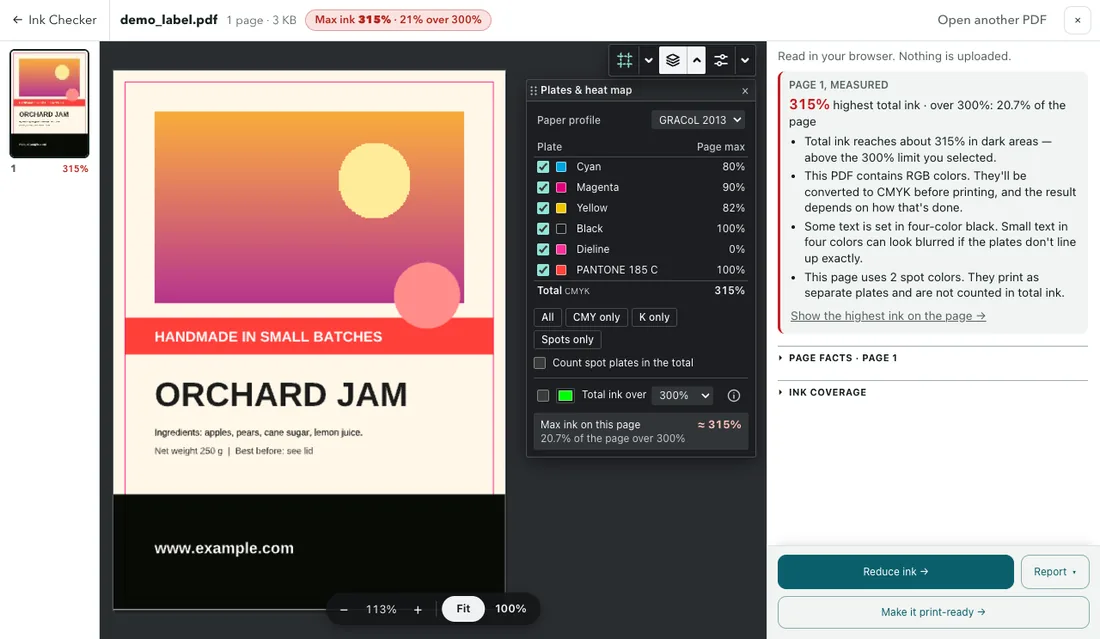
The Plates & heat map panel on the page lists the process plates (Cyan, Magenta, Yellow, Black) and, if the page has any, the spot plates with their names from the PDF. The swatch next to a spot color is the alternate color stored in the file. Before you point at the page, the Page max column shows each plate’s highest value on the page.
-
Switch plates on and off
Untick a plate to hide it. The buttons under the list show All, CMY only, K only or Spots only in one click. With CMY only, text set in pure black disappears, so whatever text is left is not black ink only.
-
Show one plate on its own
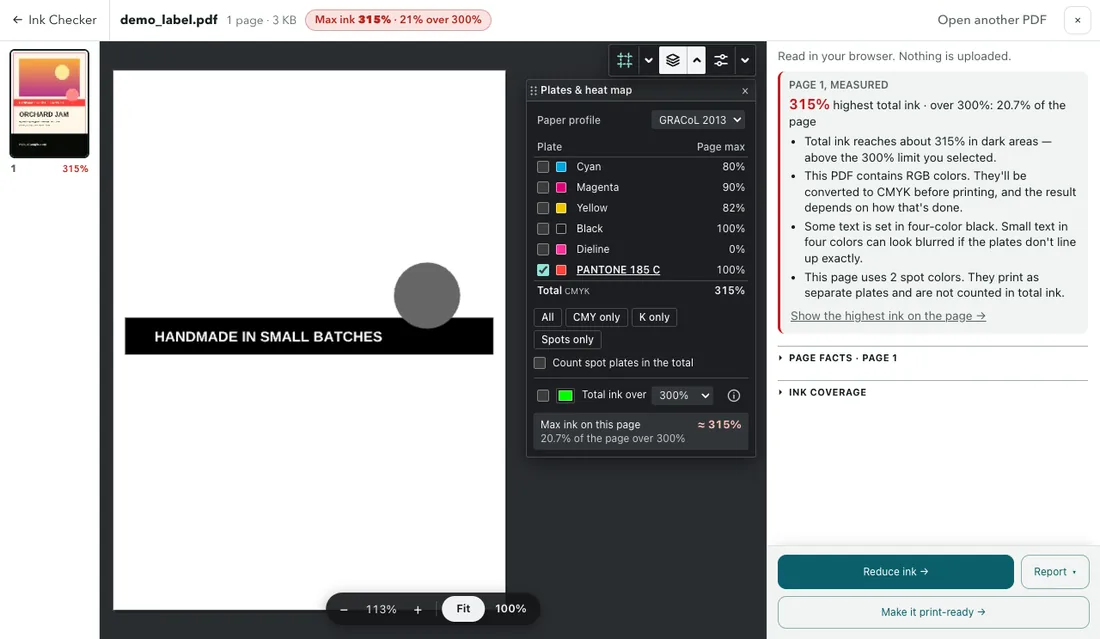
Click the name of a plate to see just that plate. By default a single plate is shown in black, like a film or plate, so light tints are easy to see; you can change that in the Display panel (open it from the small tool strip at the top right of the page). Click the name again, or All, to go back.
-
Read the percentages
Point at the page. The table and a small card next to the cursor show each plate’s ink at that spot, the total ink and whether that spot is 100% K black or four-color black. Click to pin a reading; for photos and screens choose a 3 × 3 or 5 × 5 average under Sample in the Display panel.
-
Simulate overprint and paper color
In the Display panel, under Page view, Simulate overprint is on by default and shows overprinting objects the way a press prints them; untick it to see every object knock out (the readings change with it). Page facts in the right column says whether the page uses overprint at all. Simulate paper color uses the paper white of the paper profile you chose as the background; it changes the picture only, not the numbers.
Spot colors, die lines and total ink
Spot plates are kept as they are in the file: the checker does not rename them, merge them or turn them into process colors. Registration color (“All”), which prints on every plate, and colors named like a process ink (such as “Black”) are not listed as spot plates. In the composite view they are shown with their alternate color. Total ink counts cyan, magenta, yellow and black only, and the Total row says CMYK when the page has spot plates; tick Count spot plates in the total to include them.
The same goes for a TIFF: spot channels saved from Photoshop show up as spot plates of their own name (see checking the ink of a TIFF).
The box at the top of the right column also counts the spot colors on the page. If you expected one spot color and it says three, look at the names: that is often a duplicate or a leftover from an earlier version of the design.
Compare your file with the converted version
After you convert a PDF with CMYKflow, Preview PDF in Your files on the Less Ink page opens the converted version in the same checker. Showing switches between Result, Your file and Side by side. If you uploaded the original on the same page without reloading it, it is ready to compare; otherwise choose it again from your computer. It is read in your browser only. The preview’s images are reduced to 100 dpi, but its colors and spot plates are as in the print file.
Next, check the ink: How to check the total ink coverage of a PDF online. For black text, see Rich black vs plain black, and for the whole list, our print-ready PDF checklist.
Frequently asked questions
Why does my die line or varnish show up as a spot plate?
Because that is how it is set up in the PDF. Die lines, varnish and white ink are usually defined as spot colors so that the printer gets them as separate plates. The Ink Checker lists each spot color under the name it has in the file.
Should the die line overprint?
Usually yes: a die line set to overprint does not knock a thin white gap out of the artwork beneath it. With Simulate overprint on, the checker shows overprinting objects the way a press prints them, and Page facts in the right column says whether the page uses overprint at all. Your printer can confirm what they need.
Is a spot color counted in total ink coverage?
Not by default, because it prints from its own plate. Tick Count spot plates in the total in the Plates & heat map panel if your printer wants it included.
Can I see the separations on a phone?
Yes. The checker works in a phone browser: the readings and the plate list are in a drawer at the bottom of the screen. Tap the page to read the inks; pinch to zoom.