Check your PDF before printing
How to check the total ink coverage of a PDF online
To check the total ink coverage of a PDF, open it in the free CMYKflow Ink Checker. It shows the highest total ink on the page next to the file name, marks the areas above the ink limit you choose, such as 300% or 320% (areas about 1 mm across or larger), and tells you the cyan, magenta, yellow and black at any spot you point at. The PDF is read in your browser and is not uploaded, and you do not need prepress software or an account.
What total ink coverage is
Every color in a CMYK print file is four percentages. A dark background of 80% cyan, 70% magenta, 54% yellow and 96% black has a total ink coverage of 300%. Because each ink can reach 100%, the theoretical maximum is 400%, but no press prints that: the paper cannot take that much ink fast enough. Our guide Too much ink? Total ink coverage (TAC) and why printers care explains the background.
A print shop’s ink limit is about the darkest single spot, not the average over the page. A file can have a light average and still fail because one dark photo or background goes over 300%. That is why you need to find where the ink is high, not only one number.
Why print shops check it
- Drying and set-off. Heavy ink stays wet longer and can transfer onto the back of the next sheet in the stack.
- Muddy darks. Too many inks on top of each other fill in detail in dark areas.
- Paper. Each paper and press has its own limit. Coated paper often allows about 300% to 320%; uncoated paper usually less. If your printer gave you a number, use that one.
Check your PDF now. Free, in your browser, nothing uploaded.
Open Ink CheckerStep by step
-
Open your PDF in the Ink Checker
Go to the Ink Checker and drop your PDF onto the page, or choose it from your computer. There is no file size limit, since the file stays on your device; very large files (over about 300 MB on a computer or 100 MB on a phone) can be slow. PDFs with a password cannot be opened. A TIFF, JPG or PNG can be dropped here too; see checking the ink of a TIFF.
-
Set the paper standard and ink limit
In the Plates & heat map panel on the page, choose the Paper profile (GRACoL 2013, Fogra 27, Fogra 39 or Fogra 51) at the top and, next to Total ink over, the ink limit your printer gave you. Both settings are used everywhere in the checker.
-
Read the Max ink figure
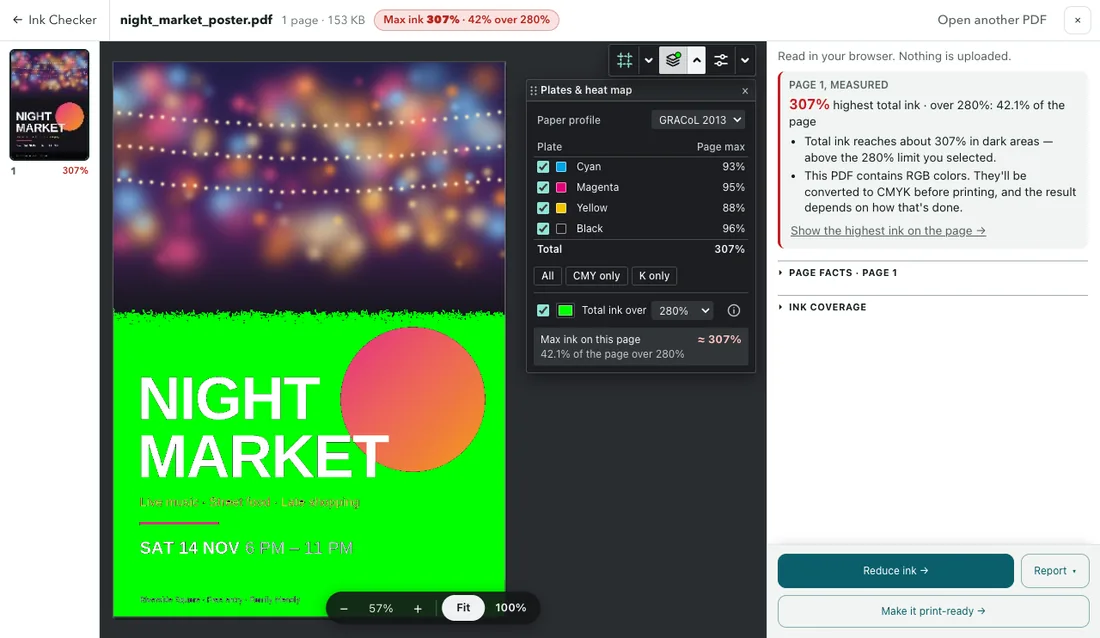
In the top bar, after the file name, Max ink shows the highest total ink on the page, in red when it is over your limit and orange when it is close. Next to the figure it says how much of the page is over the limit, for example “42% over 280%”. In a file with several pages, the page strip on the left shows each page’s highest value, and ▲ marks the highest page of the file.
-
Turn on the ink heat map
Turn on the heat map switch in the Plates & heat map panel (it marks the areas over the ink limit you picked), or click the plates icon in the small tool strip at the top right of the page. The page keeps its colors and the areas over the limit are painted bright green. Click the color swatch next to the switch to pick another warning color. In the Display panel (open it from the small tool strip at the top right of the page), under Heat map colors, you can change the opacity or switch to three tiers: yellow near the limit (up to 10% below it), green up to 10% over it, red further over. Like Max ink, isolated specks and hairlines are left out; Mark every pixel in the Display panel shows them too.
-
Point at an area to read the inks
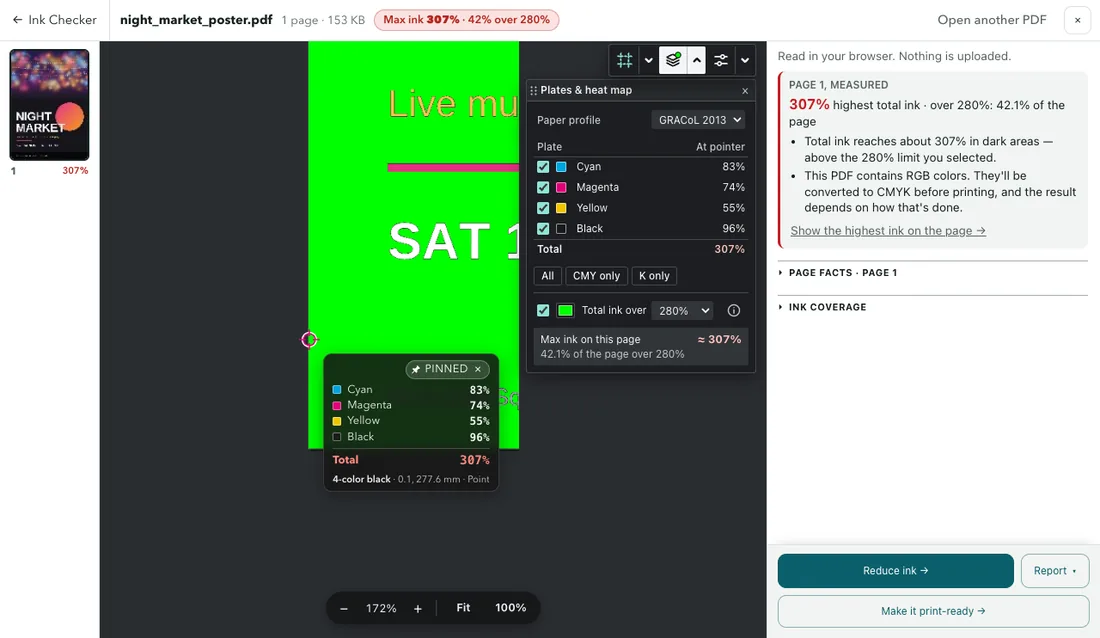
Click Max ink to jump to the highest spot and pin the reading there, or point anywhere on the page. A small card next to the cursor shows cyan, magenta, yellow, black and the total at that spot; click to pin it there (click again or press Esc to let it go). On a phone, tap the page: the card opens above the spot.
-
If the total is too high, reduce the ink
Click Reduce ink at the bottom of the right column. It sends the same PDF to CMYKflow with the paper profile and ink limit you chose in the checker. Less ink for press replaces part of the cyan, magenta and yellow in dark areas with black ink, so the total goes down while the colors stay close to the original. Check the new version in the Ink Checker again before you send it to print.
Reading the result
Max ink, Max ink on this page and Highest in this file only count areas about 1 mm across or larger. Anti-aliased edges, hairlines and tiny specks of dark ink do not raise the figure. Each ink is read to within about 2%, so a page a few percent over the limit is marked over even if it may be right at it; if it is that close, ask your printer whether they accept it.
Spot colors print as their own plates and are not counted in total ink unless you tick Count spot plates in the total. RGB colors are converted the way CMYKflow converts them for the paper standard you picked, so the figure shows what they would become. If a page uses features that a browser mixes differently from a press, such as blend modes like Multiply, the box at the top of the right column says that the readings on that page are approximate.
Average coverage and export
To estimate ink usage, printers often ask for each plate's average coverage. The Ink coverage section in the right column (click its title to unfold it) gives it for the page on screen, all pages or a range such as 3-10, weighted by page area. Unlike Max ink, it counts thin lines too.
The select tool (M) reads one area: drag a rectangle to get its size, highest ink and each plate's average. Under Report, the Ink report (PDF) and Ink coverage (CSV) are made in your browser; nothing is uploaded.
What to do when the PDF is over the limit
- Large dark backgrounds or dark photos are the usual cause. Lowering the ink with gray component replacement keeps them looking dark; see Printing large dark backgrounds.
- A rich black pushed too far, for example 100% black with heavy cyan, magenta and yellow. See Rich black vs plain black.
- Over by a few percent in a small area: ask your printer. Some accept it; others prefer a clean file.
Before you print, it is also worth checking the rest of the file: RGB content, black text and spot colors. Our print-ready PDF checklist walks through it, and How to preview the color separations of a PDF covers the plates.
Frequently asked questions
Is the Ink Checker free, and is my PDF uploaded?
It is free and needs no account. The PDF is opened and read in your browser; it does not leave your computer. It is only uploaded if you choose to convert it with CMYKflow afterwards.
How accurate is the total ink figure?
Close, not exact: each ink is read to within about 2%, and the highest total ink only counts areas about 1 mm across or larger, so anti-aliased edges and hairlines do not raise it. Some PDF features, such as blend modes like Multiply, are mixed differently by a press and a browser; when a page has one of these, the checker says that its readings are approximate.
My PDF is RGB. Can I still check its total ink?
Yes. RGB and Lab colors are converted the way CMYKflow converts them for the paper standard you pick, so you see the ink they would become. The checker also tells you that the PDF contains RGB colors.
Which ink limits can I check against?
The ink limits offered for the paper standard you choose: GRACoL 2013, Fogra 27, Fogra 39 or Fogra 51, with limits from 240% to 340% depending on the standard. If your printer gave you a number, pick it.
Are spot colors counted in the total?
Not by default. Total ink counts cyan, magenta, yellow and black, which is what printers usually mean. Tick Count spot plates in the total in the Plates & heat map panel to include them.